
asAi Chat
Open asAi Chat with your key, step by step.
asAi Chat runs in your browser at chat.serverasai.com. It does not use a password of its own: it asks for one asAi API key. That key is what pays for each message, using your prepaid credit.
This page is written for someone who has never made an API key before. Do the steps in order. Do not skip any step, and do not click anything that is not named here.
The app sends requests to https://serveras.click/v1 with the key you paste. You never type that address yourself; the app already knows it.
What you need before you start
- An asAi account (an email and password, or Google sign-in).
- Credit in that account. If your credit is RM0, chat will not answer even with a correct key. Check the number next to Credits on the dashboard.
- A browser such as Chrome, and about five minutes.
Part 1 — Create your API key
-
Sign in to your asAi account
Open serverasai.com. In the top right corner, click Sign in. Then click Sign in with Google and choose your Google account. If you did not use Google before, type your email and password in the two boxes and click Sign in.
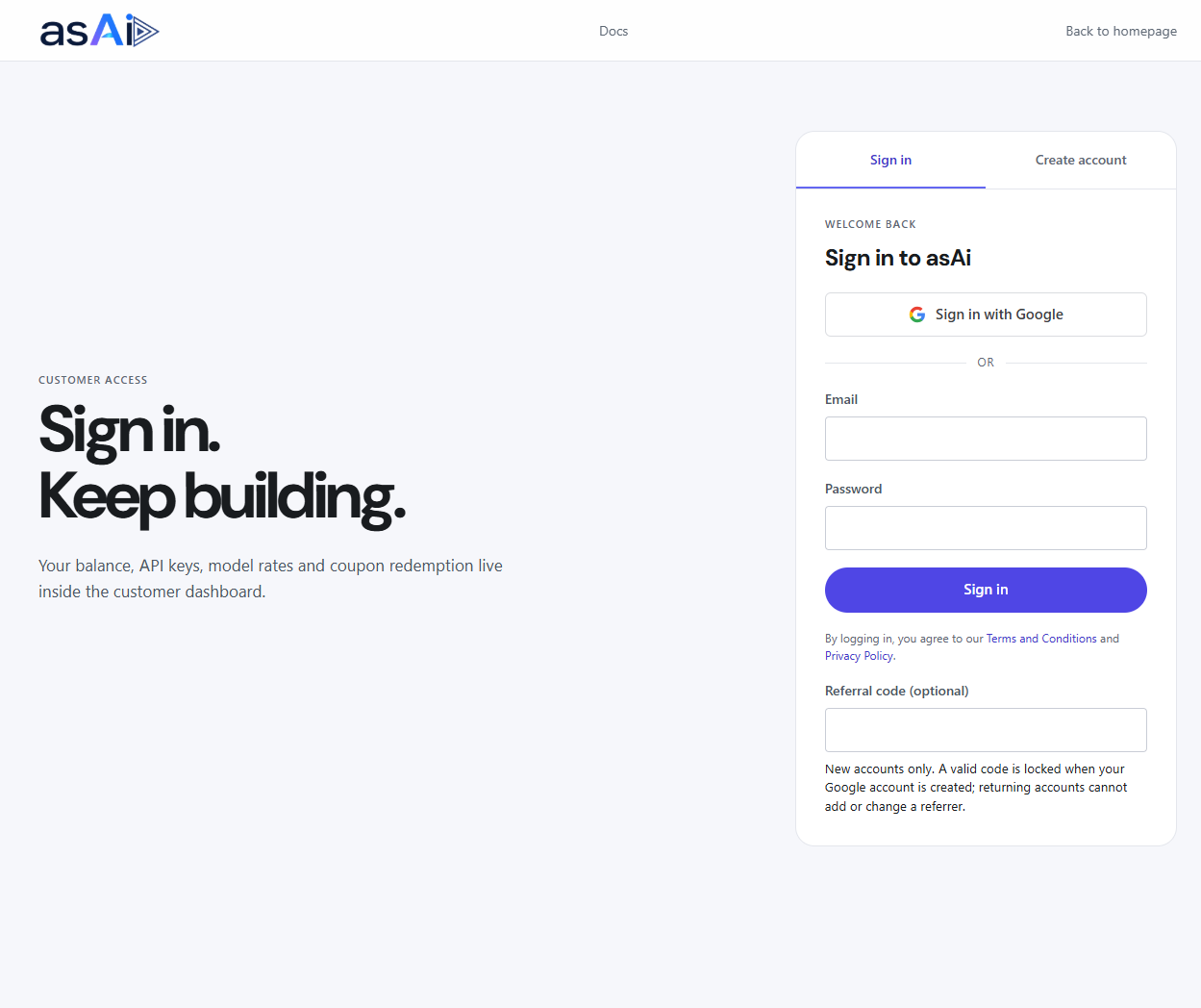
The sign in page. Use Sign in with Google, or the Email and Password boxes underneath it. -
Open the API keys page
After you are signed in, look at the menu across the top of the page and click API keys. If you cannot see that menu, type this in the address bar at the top of the browser and press Enter:
serverasai.com/manage-keys -
Create the key
On the left side of the page there is a box titled Create a key. Click inside the field under Key label and type any short name you will remember, for example
chat. Then click the Create API key button.A box appears with the words API key created. Store it securely. Under that text is one long line of characters that starts with
asai_sk_. That long line is your key. -
Copy the key
Click the Copy key button next to the long line. The button changes to Copied. That means the key is now in your clipboard, ready to paste.
Read this before you close the page. The full key is shown only once. If you close the page or refresh it without copying, the key is gone and cannot be shown again. In that case you create a new key. Never send the key to anyone, and never post it in a group chat.
One account can hold at most 3 active keys. If Create API key refuses, you already have 3: revoke an old one in the All keys list on the right, then create a new key.
Part 2 — Paste the key into asAi Chat
-
Open asAi Chat
Open a new browser tab, type
chat.serverasai.comin the address bar, and press Enter. The page says All Your Models, One App.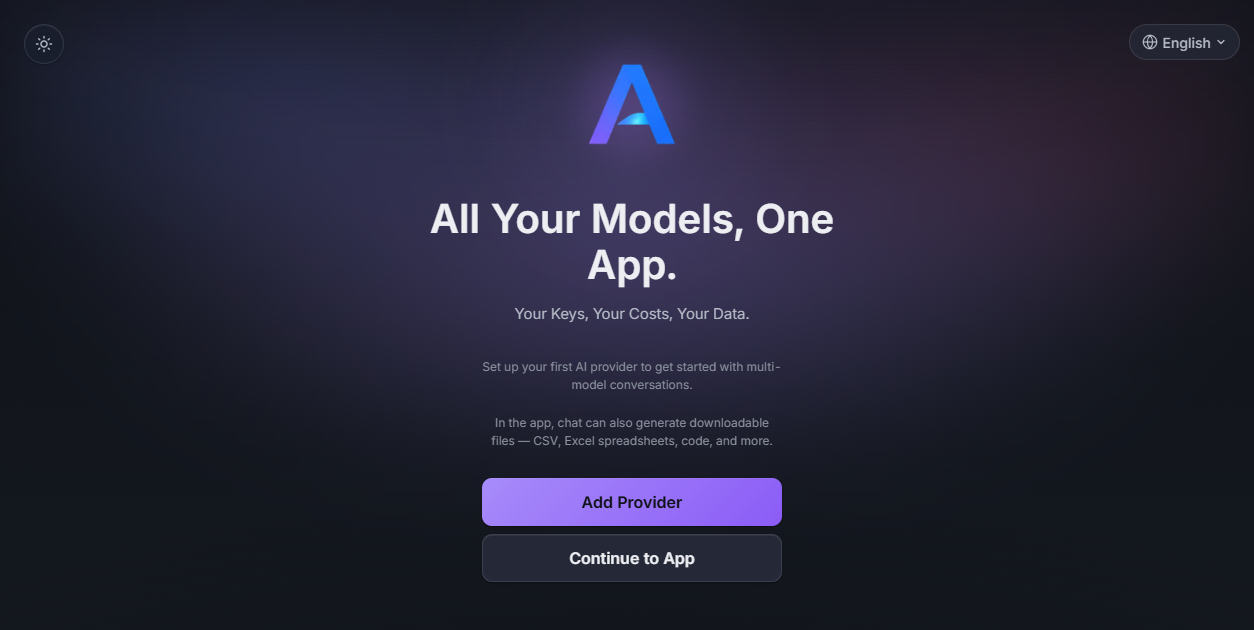
The first screen. Click Add Provider (the purple button), not Continue to App. -
Click Add Provider
Click the purple Add Provider button. Do not click Continue to App: that button skips the key, and you end up inside the chat with no key attached.
-
Paste the key
The next screen is titled Connect your asAi key. Click inside the white box labelled asAi API key. Do not type anything.
- On a computer: hold the Ctrl key and press V once.
- On a phone or tablet: press and hold inside the box, then tap Paste.
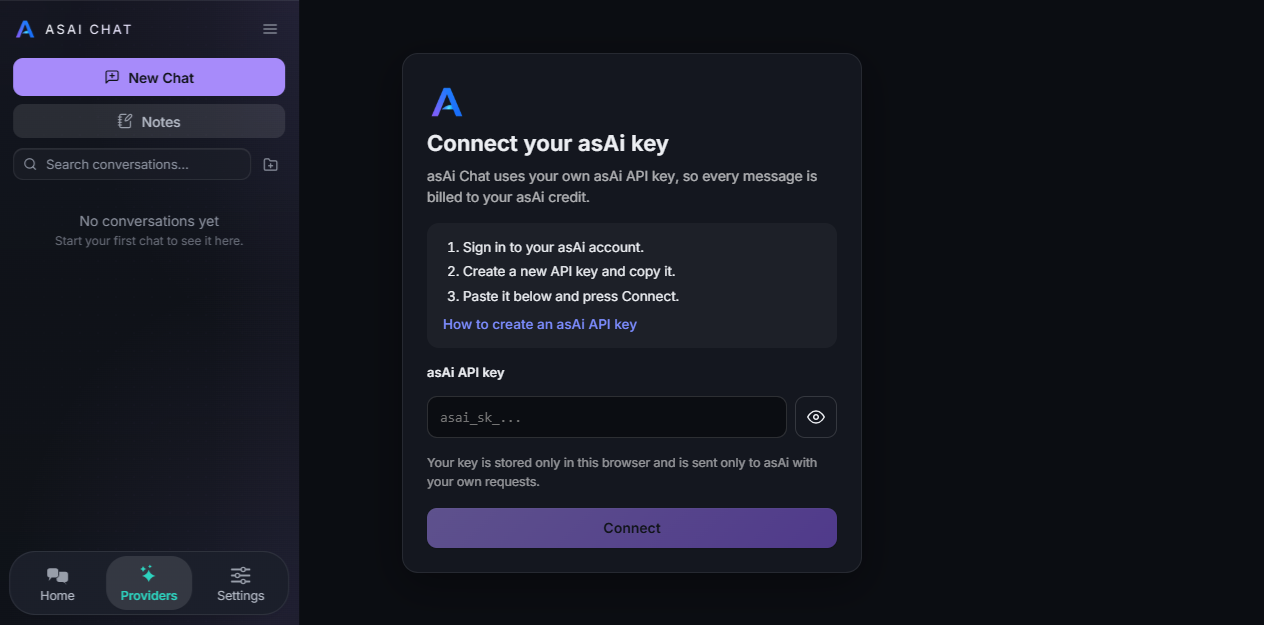
The connect screen. The key goes into the asAi API key box, then you press Connect. -
Check the key, then connect
Click Show key to see what you pasted. It must start with
asai_sk_, must have no space at the front or the back, and must be one unbroken line. Then click Connect.The word Connecting… appears for a few seconds, then the chat screen opens. That is the end of setup: you can type a message.
Part 3 — You are already inside the chat screen, but there is no key
This happens when someone clicks Continue to App first, or opens the chat before pasting a key. You do not need to start over, and you do not need a new key. Replace the key from inside the app:
-
Click Providers
Look at the left side of the screen. In the menu at the bottom of that sidebar, click Providers. On a phone, if the sidebar is hidden, tap the menu icon (three lines) at the top left first, then tap Providers.
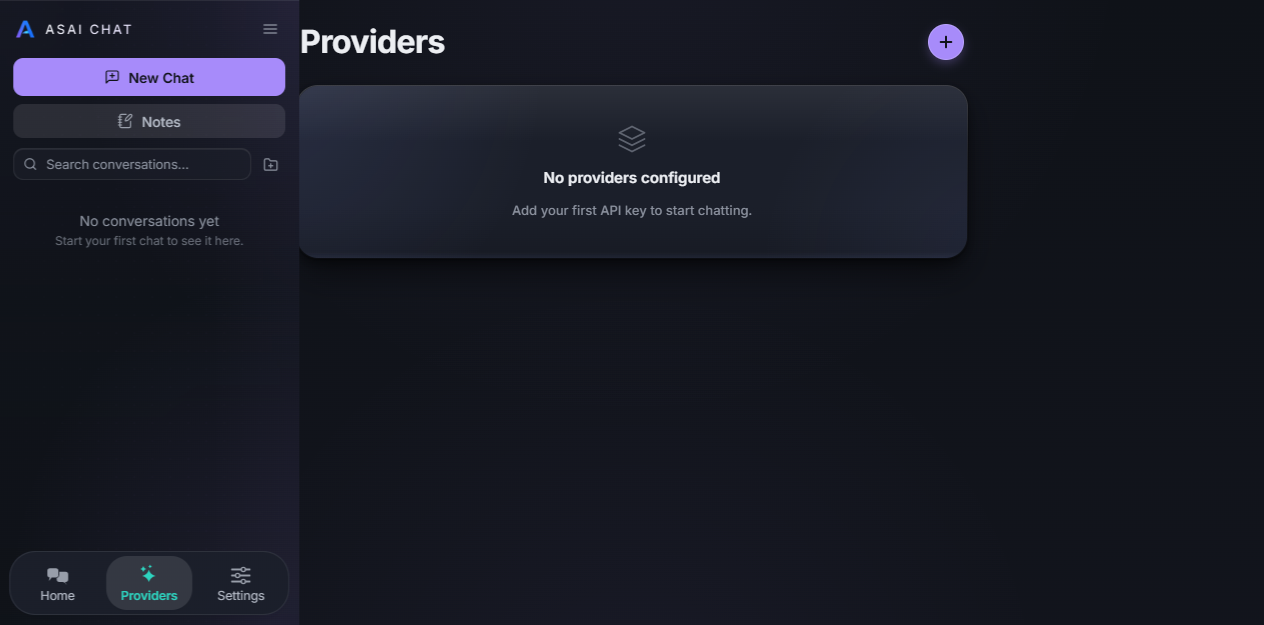
The Providers page. Providers is the middle item at the bottom of the left sidebar. -
Open the asAi entry
If a card named asAi is listed, click it. If a card named Relay or Custom Relay is listed instead, click that one: it is the same connection. If the page says No providers configured, click Add Provider and follow Part 2 above.
-
Click Replace key
In the section titled Connection, click the Replace key button. A small box appears with grey text
asai_sk_.... -
Paste and save
Click inside that small box and paste your key (Ctrl and V on a computer, or press and hold then Paste on a phone). Then click Save.
Wait for the message asAi key updated. That message means the new key is stored. Click Back at the top left to return, then start a chat.
If something does not work
- "This key was not accepted." The key was copied incompletely, or it has a space in it, or it was revoked. Create a new key (Part 1), copy it with the Copy key button, and paste again. Do not type the key by hand.
- "This key contains characters that are not allowed." The text was typed instead of pasted, or it picked up an invisible character. Clear the box and paste again.
- "Could not reach asAi." Your internet connection dropped. Check the connection and press Connect again.
- The key was never copied and the page is closed. A key cannot be shown twice. Create a new key and use that one. The old key is not lost credit: it simply stays unused, and you can revoke it from API keys.
- The key is accepted but every reply fails. Your prepaid credit is probably finished. Open the dashboard, look at Credits, and top up at Top up if it is low.
- Nothing happens when you click Connect. The Connect button stays grey while the box is empty. Click inside the box first; if the box already has text, delete one character and paste the key again.
Where the key is stored
The key stays in that browser on that device, and it is sent only to asAi with your own messages. Clearing the browser data, using a private window, or switching to another browser means you paste the key again. Anyone who uses that browser profile can use your credit, so do not set this up on a shared computer.
Need help?
Message @Loquaciouss on Telegram. Send the exact error text you see on screen. Never send the key itself.